

Table of Contents
The Quick View feature allows users to get a quick glance at products without opening the full product page.
- Ajax Add to Cart lets customers add products to the cart without refreshing the page.
- By default, Quick View is enabled.
1. Navigate to Quick View Settings #
- From your WordPress dashboard, go to:
Dashboard → Appearance → Customize → Shopier WooCommerce → Quick View
2. Panels in Quick View #
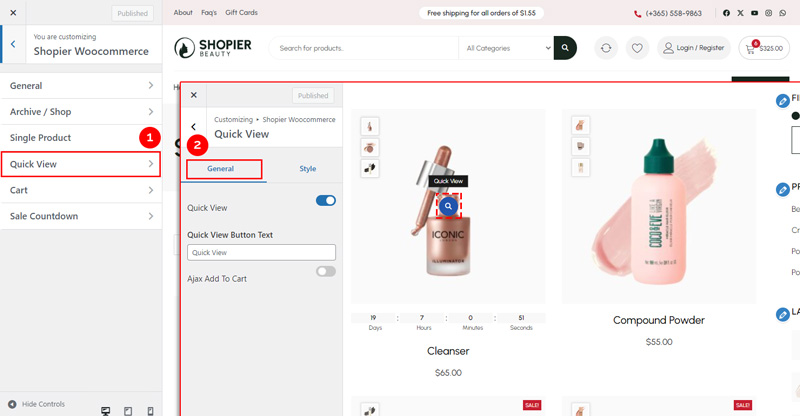
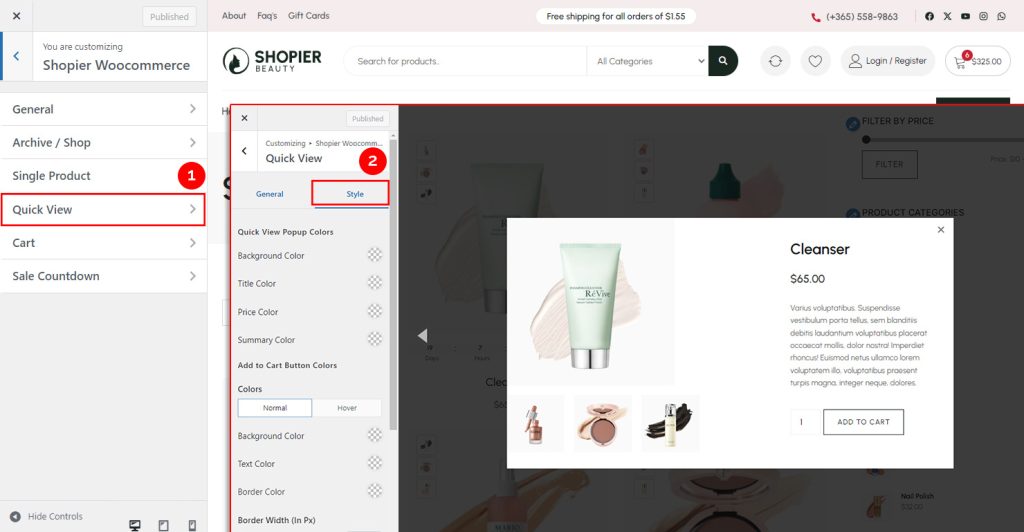
The Quick View section is divided into two panels: General and Style.
3. General Panel Options #
Inside the General panel, you can configure:
- Quick View
Enable or disable the Quick View feature. - Quick View Button Text
Customize the text displayed on the Quick View button. - Ajax Add to Cart
Enable or disable adding products to the cart via Ajax (without page refresh).
4. Style Panel Options #
Inside the Style panel, you can customize the visual appearance of Quick View:
- Quick View Popup Colors
Set the background, text, and border colors of the Quick View popup. - Add to Cart Button Colors
Customize the colors of the Add to Cart button within the Quick View popup.
5. Save Your Changes #
- Preview changes in real time.
- Click “Publish” to apply them to your website.


