

Table of Contents
Our demos feature Elementor-built headers, making customization as easy as editing any page. With the Header Footer Builder, you have full control over your header design and content.
1. Quick Access to Your Header #
After a successful demo import:
- Click Visit My Site to preview the demo.

Note: For demo import instructions, see the Detailed Demo Import Guide.
Once the preview page loads, follow these steps to customize your header:
- Hover over the Edit with Elementor menu in the top admin bar.
- Select Header from the dropdown list to modify the layout and design.


2. Customize Headers from Dashboard #
To add or edit headers via WordPress dashboard:
- Navigate to Dashboard → ElementsKit and complete setup if required.
- Go to Dashboard → ElementsKit → Header Footer.
- Locate the pre-defined Header template.
- Hover over it and click Edit with Elementor to open the editor.

3. Change Header Logo #
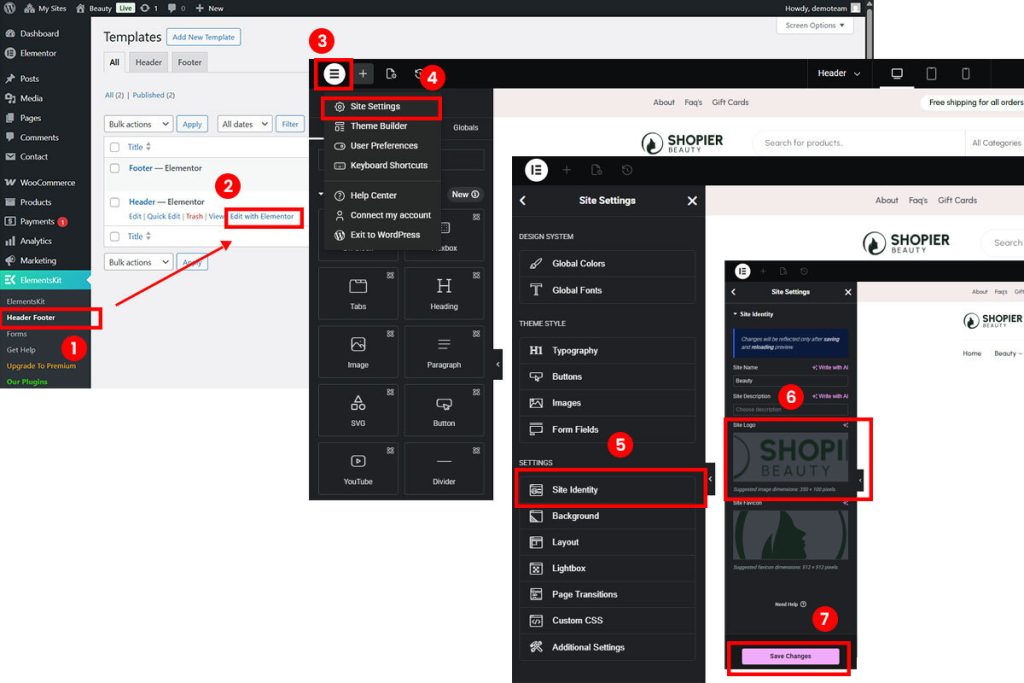
- Go to Dashboard → ElementsKit → Header Footer.
- Hover over the header template and click Edit with Elementor.
- In the editor:
- Click the Elementor icon (top-left corner).
- Navigate to Site Settings → Site Identity.
- Under Site Identity, update the Site Logo.
4. Set Up Your Menu #
- Go to Dashboard → Appearance → Menus to set up your navigation menu.
- For detailed instructions, see the Shopier Menu Setup Guide.
5. Change Header Menu #
- Go to Dashboard → ElementsKit → Header Footer.
- Hover over the header template and click Edit with Elementor.
- In Elementor, click the Header Menu.
- On the left panel under Content → Menu Settings, select the menu you want.
- Click Publish to save your changes.

To learn How to Setup Mega Menu, please visit this detailed guide.
6. Select Header/Footer for Your Site #
- Go to Dashboard → ElementsKit → Header.
- Hover over the header template and click Edit.
- In Template Settings, set:
- Title – Name your header/footer.
- Type – Choose Header or Footer.
- Conditions – Select where it should appear.
- Activate/Deactivate – Enable or disable the template.
- Click Save Changes.


